AI Headshot Generator: Turn a Selfie Into a LinkedIn Photo
Learn how an AI headshot generator turns a selfie into a professional LinkedIn photo: what to upload, which styles to pick, and what to avoid.
Updated Sep 19, 2026 6 min read
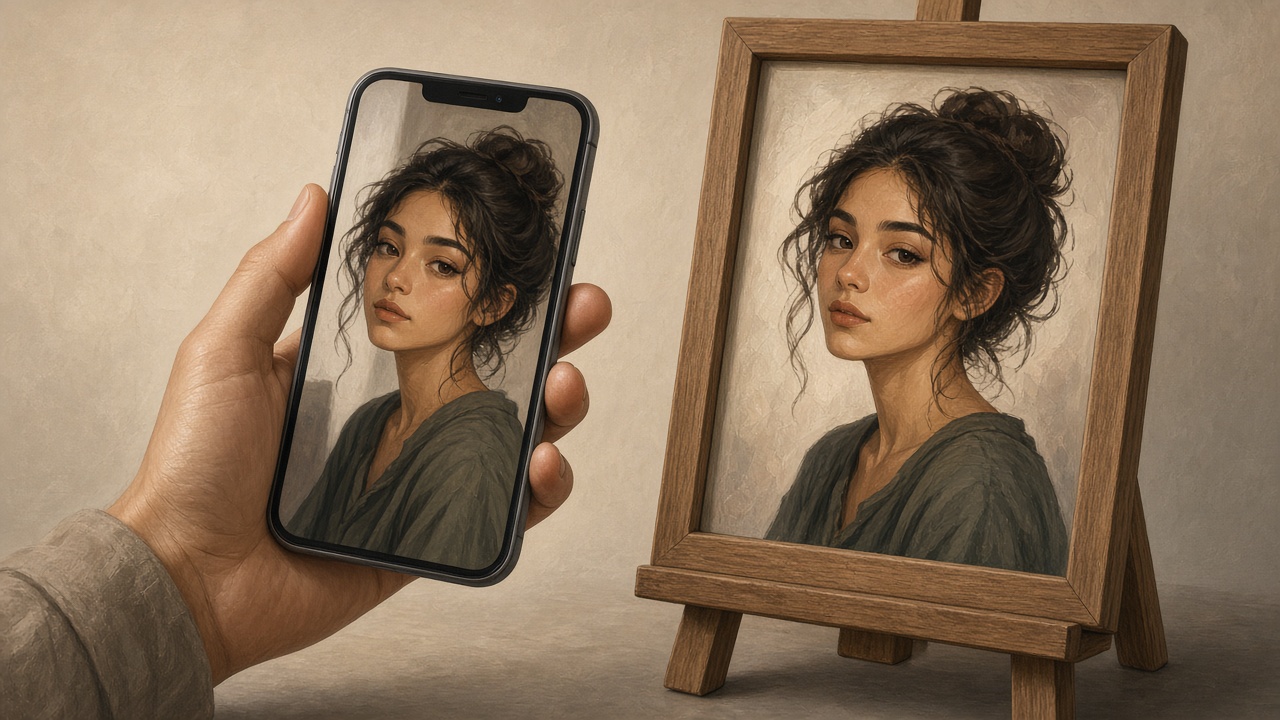
An AI headshot generator takes a normal selfie and turns it into a studio-style professional portrait: business clothes, clean background, even lighting, no photographer needed. You upload one photo, pick a style, and get back a headshot in a couple of minutes for a few dollars instead of a few hundred. The catch is that the output is only as good as the selfie you feed it and the style you pick — this guide covers both.
What actually makes a headshot look "professional"
Before touching any AI tool, it helps to know what a good headshot is actually judged on, because the generator is just automating these same rules.
LinkedIn's own advice is a useful baseline since it's the platform most people are optimizing for. The ideal size for your LinkedIn profile picture is between 400 (w) x 400 (h) pixels and 7680 (w) x 4320 (h) pixels. More important than pixels is framing: LinkedIn recommends a head-and-shoulders photo where your face fills roughly 60% of the frame, which improves clarity across devices and ensures your expression is visible in feeds and search results.
Two rules matter most for the AI step specifically:
- Solo, not group. If you use a group photo as your profile pic, people may be unsure which person you are, so choose a solo photo to leave no doubt about what you look like. AI generators need one clear face to learn from — a cropped group shot confuses them.
- It still has to look like you. LinkedIn's actual policy is blunt about this: you can use an illustration, caricature, or other artistic rendering of yourself, but your profile photo must reflect your likeness. That's the real test for any AI headshot, not how polished it looks.
A headshot only works if a stranger who's never met you could pick you out of a crowd from it.
How AI headshot generators actually work
You upload one or more selfies. The tool analyzes your facial structure, then generates a new image that places a version of your face into a studio setting — a suit, a blazer, a plain or blurred office background, professional lighting. It's not editing your original photo pixel by pixel; it's building a new picture that's supposed to resemble you.
That gap between "resembles you" and "is you" is where most complaints show up. Independent reviews of dedicated headshot tools note that some users have reported accuracy issues, with the AI altering skin tone, changing hair length or style, or modifying facial features, and that accuracy depends heavily on the quality and variety of the uploaded photos. Forced expressions are another common complaint: one reviewer who tested several tools found that a platform insisted on forcing a smile, which often ruined the resemblance by changing the natural facial expression.
None of this means AI headshots look fake by default. Reviewers testing paid tools have found the accuracy honestly impressive, with photos looking realistic enough that most people, including employers, can't tell they were made by AI. The quality gap is almost entirely about input quality and how far the style pushes away from your real face — which is exactly what you control.
What photo to upload
Give the tool one clean shot and it has a much easier job:
- Face the camera. A straight-on or slight three-quarter angle works best; pure profile shots don't give the model enough to work with.
- Use even, natural light. A window facing you beats overhead ceiling lights or a flash — no harsh shadows across your face.
- Keep your whole face and shoulders visible. No cropped chins, no hats or sunglasses covering your eyes.
- Skip filters. Beauty filters, warped lenses, and heavy retouching confuse the model's read on your actual features.
- Use a recent photo. If your look has changed a lot — new glasses, different hair, a beard grown or shaved — use a current photo so the result still looks like you today.
Styles worth choosing
Most headshot tools offer a handful of style presets. For LinkedIn and resumes, stick to the boring-on-purpose options: solid or lightly blurred office background, a blazer or button-down, neutral or navy tones, soft studio lighting. Save the outdoor, casual, or dramatic-lighting styles for a personal website or portfolio where a bit more personality fits.
Do it in Plurel
Plurel has a dedicated Headshot tool built for exactly this — one selfie in, a professional portrait out.
- Open plurel.tech and sign in (Google sign-up is free and comes with 60 credits, no card).
- Under the message box, click Image, then choose Headshot — or jump straight there with plurel.tech/?model=headshot.
- Upload your selfie. Pick a clear, front-facing, well-lit photo per the checklist above.
- Choose a style — business, studio, or casual professional — and approve the credit cost before it runs. The Headshot tool costs 4 credits per generation.
- Review the result. If something's off, follow up in the same chat: "same photo but with a grey background" or "swap the blazer for a navy suit." Because the chat edits what was just made, it will adjust that headshot rather than starting from scratch.
- Download it, or send it straight to another tool for finishing.
Finishing touches with other tools
- Swap the background with Remove BG (0.5 credits) if you want a plain white or transparent background instead of whatever the headshot generated.
- Upscale for print or a big display with Upscale (1 credit) to push the final image to 4K.
- Make small edits — remove a stray shadow, adjust the tie color, fix a collar — with Edit, priced the same as a picture.
- If you're also refreshing your background photo or banner, the AI background remover guide walks through cleaning up other photos the same way.
- Want a short video introduction to go with the new photo? How to Turn a Photo Into a Video With AI covers animating a still into a clip.
Troubleshooting and tips
| Problem | Likely cause | Fix |
|---|---|---|
| Result doesn't look like you | Low-light, angled, or filtered source selfie | Re-upload a sharper, front-facing photo in natural light |
| Skin looks too smooth or "plastic" | Style pushed too hard toward a glossy studio look | Try a more neutral/business style, or ask for "less retouching" in a follow-up |
| Forced smile or odd expression | Style preset defaults to a big smile | Ask for "neutral, confident expression, no forced smile" as a follow-up |
| Background is busy or wrong color | Default style background wasn't specified | Follow up with the exact background you want, or run it through Remove BG |
| Outfit doesn't match your industry | Generic style chosen | Specify the outfit directly: "charcoal suit, white shirt, no tie" |
A few things to avoid outright: don't upload a selfie with sunglasses, a hat, or another person in frame, don't pick a style so stylized it stops looking like your actual face, and don't skip reviewing the result against a mirror check — if a close friend wouldn't recognize you instantly, try again with a cleaner source photo.
If you need more than one look
Job seekers and freelancers often want a few variations — one for LinkedIn, one plainer version for a resume, maybe a slightly warmer one for a personal website. Run the Headshot tool again with the same selfie but a different instruction each time ("charcoal suit, office background" then "open collar, soft grey background") rather than trying to get every look out of a single generation. Each run is a fresh 4-credit charge, but it's still far cheaper and faster than booking multiple photographer sessions for different use cases.
Batches and picking the best shot
Because results vary shot to shot even from the same input, it's worth generating more than one version before you settle on a final photo. If the first result has a slightly odd angle on your glasses or an unnatural fold in your collar, regenerate rather than accepting a flawed image — a fresh attempt with the same selfie often clears up small artifacts without any extra editing.
A good AI headshot is just a well-chosen selfie plus a sensible style — get the input right and the rest is one click.
Questions people ask
- Can an AI headshot generator make me look like a different person?
- It can if the input photo is poor or the style is pushed too far, which is why reviewers report accuracy issues like altered skin tone or changed facial features on some tools. Starting from a clear, well-lit, front-facing selfie and picking a realistic style keeps the result recognizably you.
- Is it okay to use an AI headshot on LinkedIn?
- Yes, as long as the photo still reflects your actual likeness, which is LinkedIn's own condition for profile photos. A tidy AI-generated portrait that looks like you is fine; a heavily stylized avatar that doesn't resemble you risks removal.
- What's the best selfie to upload for an AI headshot?
- A recent, front-facing photo in even natural light, with no sunglasses, hats, heavy filters, or other people in frame. One sharp photo of just your face and shoulders is enough for Plurel's Headshot tool.
- How much does an AI headshot cost in Plurel?
- The Headshot tool costs 4 credits per generation, and new accounts start with 60 free credits after signing up with Google, no card required.
- Can I change the outfit or background after generating my headshot?
- Yes. Because Plurel's chat edits what was just made, you can follow up with instructions like "same photo but a navy blazer" or "put me on a plain grey background" and it will adjust the existing headshot.
- How is an AI headshot different from a real photographer's headshot?
- A photographer controls lighting and pose in person over a session; an AI headshot generator builds a studio-style portrait from a selfie you already have, in minutes and for a fraction of the price, though results vary shot to shot.
Sources
- 10 Tips for Taking a Professional LinkedIn Profile Photo
- LinkedIn Profile Picture Tips: Proven Photo Do's & Don'ts
- Profile photo guidelines and conditions | LinkedIn Help
- HeadshotPro vs Real Photography: 2026 Comparison
- 2025 AI Headshot: I Tried 7 Tools So You Don't Have To
- Best AI Headshot Generators in 2026: 8 Tools Tested and Compared
Keep going
AI Background Remover: How to Remove a Photo Background
Learn how AI background removers work and how to remove any photo's background cleanly, with sharp edges, in one click for 0.5 credits.
Updated Sep 19, 2026
How to Make an AI Influencer (and Keep Her Consistent)
Learn how to make an AI influencer with a consistent face across photos and video, then build one step by step in Plurel.
Updated Sep 19, 2026
How to Turn a Photo Into a Video With AI
Learn how to turn a photo into a video with AI, step by step, using Seedance 2.5 or Kling 3.0 in Plurel's Animate tool — with prompts and credit costs.
Updated Sep 19, 2026
How to Make a Short Film With AI, Start to Finish
Learn how to make a short film with AI: write the plan, design a hero character, animate 3–5 clips, and assemble the finished film in Plurel.
Updated Sep 19, 2026