How to Turn a Photo Into a Video With AI
Learn how to turn a photo into a video with AI, step by step, using Seedance 2.5 or Kling 3.0 in Plurel's Animate tool — with prompts and credit costs.
Updated Sep 19, 2026 6 min read
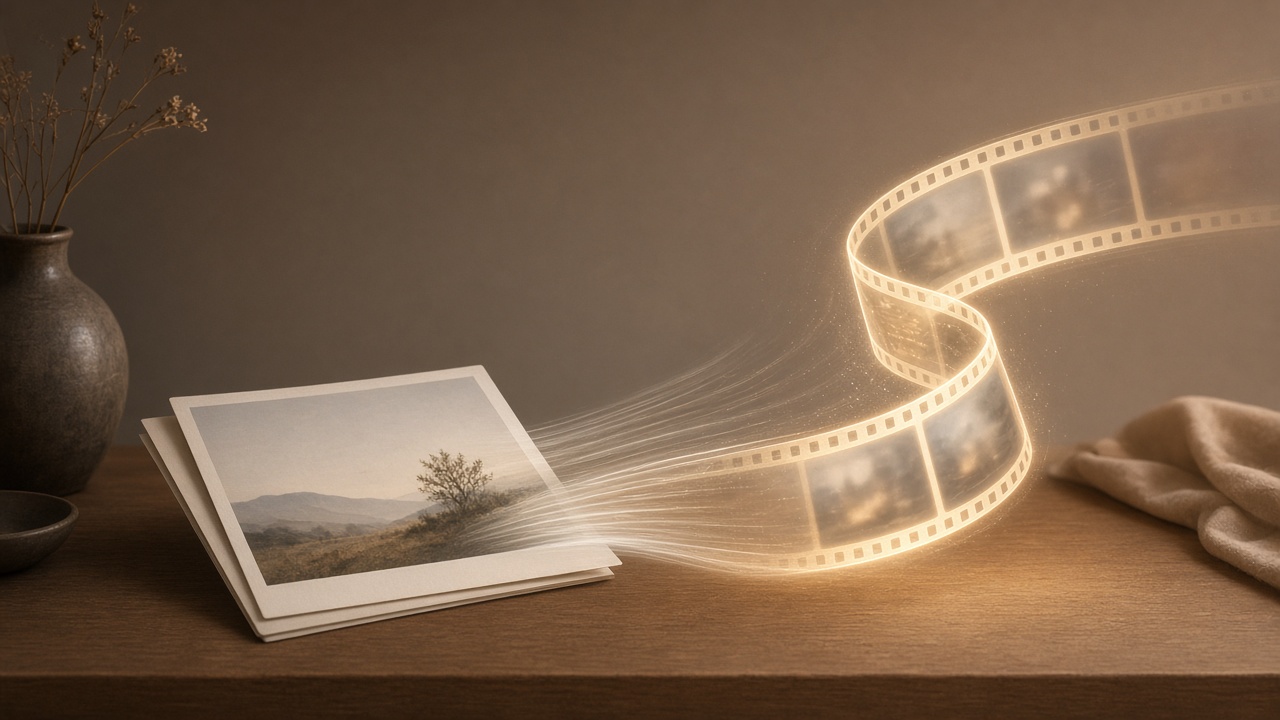
Turning a photo into a video means feeding a still image to an AI model and telling it how the scene should move — a head turning, hair lifting in wind, a product slowly rotating. The model fills in every frame in between, and modern tools like Seedance 2.5 and Kling 3.0 can do it with realistic motion and built-in sound in under a minute.
This guide covers how the technology actually works, which model to pick for which job, how to write a prompt that controls the motion instead of fighting it, and the exact steps to do it in Plurel.
How image-to-video AI actually works
Your photo isn't being "animated" frame by frame the way a cartoonist would. The model treats your image as a fixed starting point, reads your text prompt for what should happen, and generates a sequence of new frames that stay visually consistent with the original while introducing the motion you described. It's prediction, not tracing — which is why vague prompts get vague, drifting results, and specific prompts get controlled ones.
That has a direct practical consequence: you should describe the motion you want, not the contents of the photo. The model can already see the photo; repeating "a woman in a red dress standing in a park" wastes your prompt. Runway's own prompting documentation makes the same point for image-to-video work in general — rather than describing elements present in the image, you should use your prompt to describe the motion of the scene, and to control individual elements from the image, refer to characters and objects with general language to isolate them and define motion. That advice holds across every image-to-video model, including the two covered here.
Seedance 2.5 vs Kling 3.0: which one to pick
Both models turn a photo into a moving clip with sound, but they're built for different jobs. Seedance 2.5 is the one to reach for when you need a longer clip or need the subject, product, or style to stay locked across a sequence. ByteDance's own release notes for Seedance 2.5 describe a "one-take creation" workflow where it allows users to input up to 30 images, 10 video clips, and 10 audio clips as reference materials in a single pass, and a larger volume and wider variety of references can better capture the user's intent, producing complex videos with more subjects, richer scenes, and more flexible camera work. In practice that means it's the stronger choice when a photo has a specific person, product, or outfit you need to stay identical in the video.
Kling 3.0 leans the other way: shorter, more cinematic single shots with strong physics. According to fal.ai's rollout announcement, Kling 3.0 is the new core model for both text-to-video and image-to-video generation, and it supports clips from 3 to 15 seconds in duration, along with start- and end-frame conditioning — meaning you can also tell it exactly what the last frame should look like, not just the first. Kuaishou's own model guide adds that the Kling 3.0 model series enables native audio-visual output, with highly flexible storyboard control and more precise semantic response accuracy, which is why it's the pick for a single dramatic shot rather than a long sequence.
| Seedance 2.5 | Kling 3.0 | |
|---|---|---|
| Price in Plurel | 30 credits from | 55 credits from |
| Max length | Up to 30 seconds | 15 seconds |
| Resolution | 1080p | 1080p |
| Reference control | Strongest — keeps characters, products, style consistent | End-frame control on a single shot |
| Best for | Longer clips, product shots, consistent characters | Short, cinematic single shots with heavy motion |
If you're not sure, start with Seedance 2.5 — it's cheaper per generation and more forgiving if your prompt isn't perfect on the first try. Save Kling 3.0 for the shot that needs to look like it came out of a film camera.
How to prompt for motion
A good image-to-video prompt has three parts: what moves, how it moves, and what the camera does.
- Subject motion: "she slowly turns her head toward the camera and smiles"
- Environment motion: "steam rises from the cup, curtains sway gently in the breeze"
- Camera motion: "slow push-in", "static shot, no camera movement", "gentle pan left to right"
Keep it to one clear action per clip. Models handle "the dog stands up and shakes off water" far better than five unrelated things happening at once. If the photo has more than one subject, name them ("the man on the left" / "the woman in the blue coat") so the motion doesn't get applied to the wrong person.
Do it in Plurel
- Go to Plurel and sign in — new accounts get 60 free credits with no card required.
- Open the Animate tool directly, or from the chat's row of chips under the composer.
- Upload your photo. Sharper, well-lit source images give the model more to work with and reduce warping.
- Pick your model:
- Seedance 2.5 — 30 credits from, up to 30 seconds, strongest for keeping a character or product consistent.
- Kling 3.0 — 55 credits from, up to 15 seconds, best for a single cinematic shot with an optional end frame.
- Type your motion prompt (subject + environment + camera, as above), choose length and resolution, and check the credit cost shown before you confirm.
- Generate. The clip appears with sound where the model supports it.
- To change anything, just say so in the chat — "make the wind stronger," "same clip but at night" — and it edits what was just made rather than starting over.
- To make the clip longer, open Extend and it continues from the last frame at the same video price as a new generation.
- If a generation went wrong in one specific way (wrong color, an extra hand), use Video edit to fix that instruction rather than re-rolling the whole clip.
If you're already planning a shot with a chat model, Claude Opus 5, Claude Sonnet 5, or GPT-6 Astra can draft the prompt and the plan for you, and it'll show you the credit cost before anything generates.
Troubleshooting and tips
Warped hands or faces: this usually comes from asking for too much motion at once, or from a low-resolution source photo. Simplify the prompt to one action and re-upload a sharper image if you have one.
The subject drifts away from the original photo: switch to Seedance 2.5 and lean on its reference handling — it's built specifically to keep a character or product consistent rather than reinterpreting them.
You need the exact same character across multiple videos: this is a common ask for creators building a consistent AI persona. Our guide on how to make an AI influencer covers the workflow for keeping one face and look consistent across many generations, which pairs directly with the Animate tool once you have a base photo.
Clip feels too short: don't try to force one long generation from a model capped at 15 seconds. Generate the first shot on Kling 3.0, then chain a second one with Extend, or move the whole job to Seedance 2.5, which supports up to 30 seconds natively.
Not sure it's worth the credits: run a first pass on the cheaper model at a shorter length and lower resolution to check the motion direction is right, then re-run at full length once the prompt is dialed in.
A photo only shows one moment. With the right prompt and the right model, you can decide what happens the second after — and see it, with sound, in under a minute.
Questions people ask
- How do I turn a photo into a video with AI for free?
- Plurel gives new accounts 60 free credits, enough to animate a photo with a model like Seedance 2.5 or a cheaper option and see the result before paying for anything.
- Which AI is best for turning a photo into a video?
- For most single photos, Seedance 2.5 gives the longest, most controllable result; for a short cinematic clip with realistic physics, Kling 3.0 is the stronger pick.
- How long can an AI video made from a photo be?
- It depends on the model: Seedance 2.5 can go up to 30 seconds in one generation, while Kling 3.0 tops out at 15 seconds per clip, and both can be extended afterward.
- Does the photo need to be high resolution?
- A sharp, well-lit, non-blurry photo gives the model more detail to work with, which reduces warping and artifacts in the generated motion.
- Can I add sound to a video made from a photo?
- Yes — both Seedance 2.5 and Kling 3.0 in Plurel can generate native audio alongside the motion, so you don't need a separate step to add sound.
- Can I keep animating the same photo after the first clip?
- Yes, you can follow up in the chat to continue the clip or change the scene, and the Extend tool will pick up exactly where the last video left off.
Sources
Keep going
How to Make a Short Film With AI, Start to Finish
Learn how to make a short film with AI: write the plan, design a hero character, animate 3–5 clips, and assemble the finished film in Plurel.
Updated Sep 19, 2026
How to Make an AI Influencer (and Keep Her Consistent)
Learn how to make an AI influencer with a consistent face across photos and video, then build one step by step in Plurel.
Updated Sep 19, 2026
AI Headshot Generator: Turn a Selfie Into a LinkedIn Photo
Learn how an AI headshot generator turns a selfie into a professional LinkedIn photo: what to upload, which styles to pick, and what to avoid.
Updated Sep 19, 2026

AI Background Remover: How to Remove a Photo Background
Learn how AI background removers work and how to remove any photo's background cleanly, with sharp edges, in one click for 0.5 credits.
Updated Sep 19, 2026