How to Make an AI Influencer (and Keep Her Consistent)
Learn how to make an AI influencer with a consistent face across photos and video, then build one step by step in Plurel.
Updated Sep 19, 2026 6 min read
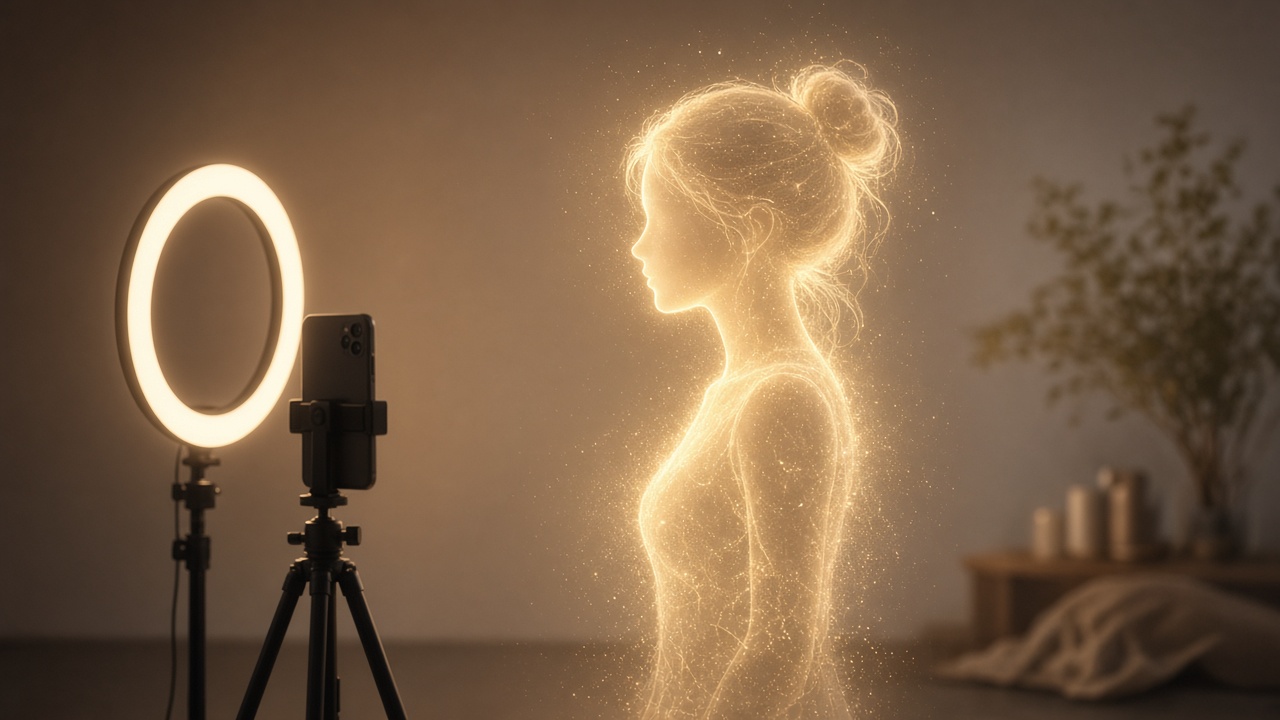
An AI influencer is a fictional character — face, body, personality, feed — built entirely with AI image and video tools instead of a real person in front of a camera. The whole project lives or dies on one thing: whether that face looks like the same person in post 50 as it did in post 1. Get that right and everything else (outfits, locations, video clips) is just prompting.
This guide covers the actual technique for keeping a generated face consistent, then walks through building one from scratch in Plurel.
Why most AI influencers fall apart
Type the same prompt into an image model twice and you'll get two different faces. Image models don't have memory of "your" character — they generate a new face from the text every time, so tiny wording changes shift the jawline, eye shape, or skin tone. This is the single biggest reason first attempts at an AI influencer look like a cast of lookalike sisters instead of one person.
The fix isn't a better prompt — it's not regenerating the face at all. Once you have one photo you like, every future photo should be an edit of that photo (new outfit, new background, new pose) rather than a brand-new generation from a text prompt. Editing a reference image preserves the identity because the model is changing pixels around a face it already has, not inventing a new one.
The three-layer method
- Design once. Generate a small batch of a character until one image nails the face, then treat that image as the master reference.
- Edit, don't regenerate. Use an image-editing tool with that master photo attached to change clothes, settings, lighting, and expression, one instruction at a time.
- Animate what you already made. Turn the finished, on-model photos into video with an image-to-video tool, so the video inherits the same locked-in face instead of generating a new one.
Everything below follows that order.
Step by step: build your AI influencer in Plurel
1. Design the base character
Open the Image tool or go straight to a model. For a realistic human face, use Nano Banana 2 (4 credits) — it's built for portraits and complex scenes, which is exactly what a believable influencer needs. If you want sharper prompt accuracy on a budget, Seedream 5 (3 credits) is a solid alternative.
Write a detailed physical description, not a vague one: age range, hair color and length, eye color, skin tone, build, and a signature detail (a mole, a piercing, a specific eyebrow shape). Vague prompts are what cause face drift later, because there's nothing specific for the model to lock onto.
Generate a few variations, pick the one photo that looks right, and save it — that's your master reference for everything that follows.
2. Lock the face with a small reference set
Before you start posting, spend a handful of credits building a mini reference set from that one master photo: a straight-on shot, a slight angle, a close-up, a full body shot. Do this with the Edit tool by uploading the master photo and asking for a new angle or framing — not by writing a fresh text prompt. This gives you a small library to pull from so you're never generating the face from zero again.
3. Create outfit and scene variations without losing the face
This is where the character actually becomes a feed. Upload your reference photo to the relevant tool and describe the change:
- Styling (4 credits) — new outfit, new setting, a different "vibe" for the shoot.
- MakeUp (4 credits) — change her makeup look for an evening post versus a morning one.
- Haircut (4 credits) — test a new hairstyle without touching the underlying face.
- Edit — anything else: change the background to a café, a beach, a studio; add a coffee cup to her hand; change the lighting to golden hour.
Each of these tools works from your existing photo, which is what keeps the identity stable across dozens of posts. In the chat itself, you can also just tell it "same woman, now at a rooftop bar at night" as a follow-up, since chat edits what was just made.
Finish each shoot with Remove BG (0.5 credits) if you need a clean cutout for a graphic, or Upscale (1 credit) to push the final image to 4K before posting.
4. Turn photos into video
Static photos only carry an AI influencer so far — Reels and TikTok need motion. Two ways to get there in Plurel:
- Animate. Open Animate and feed it one of your on-model photos. It turns a still image into a moving clip (image-to-video), so the face that shows up in the video is the exact face from the photo, not a new one.
- Talking avatar. For a piece to camera — a product recommendation, a "get ready with me" intro — use Avatar. Upload the photo, write the script, and it generates a talking clip from that one image.
For longer or more cinematic shots, run the photo through the Video tool with a model like Veo 3.1 Fast (from 20 credits, 8s 1080p) or MiniMax H3 (from 12 credits, 2K with native sound). If a clip is good but too short, Extend continues it instead of starting a new generation.
5. Batch a week of content in one sitting
Once the face is locked, the fastest workflow is to open Claude Opus 5 or GPT-6 Astra in chat and describe the week: five photo posts and two clips, themes and locations. These chat models can plan the shoot list and generate the pictures and clips using the tools above — you just approve the plan and its credit cost before anything is made.
Which image model to design with
| Model | Credits | Best for |
|---|---|---|
| Nano Banana 2 | 4 | Photorealistic portraits, the strongest starting face |
| GPT Image 2.5 | 3.5 | Edits and reference-based changes, complex prompts |
| Seedream 5 | 3 | Sharp detail and prompt accuracy on a budget |
| Qwen Image 3 Pro | 2.5 | Posts with legible text or graphics baked into the image |
| Plurel Lite | 0.5 | Cheap first-pass tests before committing credits |
Design the master face with Nano Banana 2 or GPT Image 2.5, then use whichever edit tool is cheapest for routine variations once the face is locked.
Troubleshooting
The face keeps changing between posts. You're regenerating from a text prompt instead of editing the reference photo. Go back to step 2 and rebuild your small reference set, then only use Edit, Styling, MakeUp, or Haircut on those images from now on.
The video's face doesn't match the photos. Feed the video tool the actual reference photo rather than a fresh text description — Animate and Avatar both take an image as input specifically to preserve identity.
Credits are disappearing fast. Test compositions on Plurel Lite at 0.5 credits before committing to a 4-credit portrait model, and use GPT-5.6 Luna (0.1 credits) in chat for caption writing instead of a flagship model.
A shoot idea isn't working. Describe what's wrong in the chat as a follow-up ("same woman, but smiling, less studio lighting") instead of starting a new generation — it edits what was just made.
Design the face once, edit it everywhere after, and your AI influencer will hold together as one recognizable character across every post.
Questions people ask
- What does it mean to make an AI influencer?
- It means designing a fictional persona with an AI image model, then reusing that same face across many photos and video clips so followers recognize her as one consistent character.
- What is the hardest part of making an AI influencer?
- Keeping the same face, body, and style across every post. Most people's AI influencer 'drifts' into a slightly different-looking person every time they generate a new image.
- Which AI model is best for a consistent AI influencer face?
- A photorealistic model built for portraits, like Nano Banana 2, plus an edit tool that changes outfits and scenes on your existing reference photo instead of regenerating the face from scratch.
- Can I turn my AI influencer's photo into a talking video?
- Yes. In Plurel, the Avatar tool turns one photo and a script into a talking clip, and the Animate tool turns any photo into a short moving video.
- Do I need design skills to make an AI influencer?
- No. You describe the character in plain English, generate a base photo, and reuse it for every future post with edit and animate tools rather than starting over each time.
- Is making an AI influencer free?
- Plurel gives new accounts 60 free credits with Google sign-up and no card, which is enough to design a character and test a few posts before buying credits or a plan.
Keep going
How to Make a Short Film With AI, Start to Finish
Learn how to make a short film with AI: write the plan, design a hero character, animate 3–5 clips, and assemble the finished film in Plurel.
Updated Sep 19, 2026
AI Background Remover: How to Remove a Photo Background
Learn how AI background removers work and how to remove any photo's background cleanly, with sharp edges, in one click for 0.5 credits.
Updated Sep 19, 2026
AI Headshot Generator: Turn a Selfie Into a LinkedIn Photo
Learn how an AI headshot generator turns a selfie into a professional LinkedIn photo: what to upload, which styles to pick, and what to avoid.
Updated Sep 19, 2026
How to Turn a Photo Into a Video With AI
Learn how to turn a photo into a video with AI, step by step, using Seedance 2.5 or Kling 3.0 in Plurel's Animate tool — with prompts and credit costs.
Updated Sep 19, 2026