AI Video Prompt Tips: Camera, Motion, Light, Duration
AI video prompt tips that actually work: how to write subject, camera, lighting and duration for Kling 3.0 and Seedance 2.5, and what breaks a clip.
Updated Sep 20, 2026 8 min read
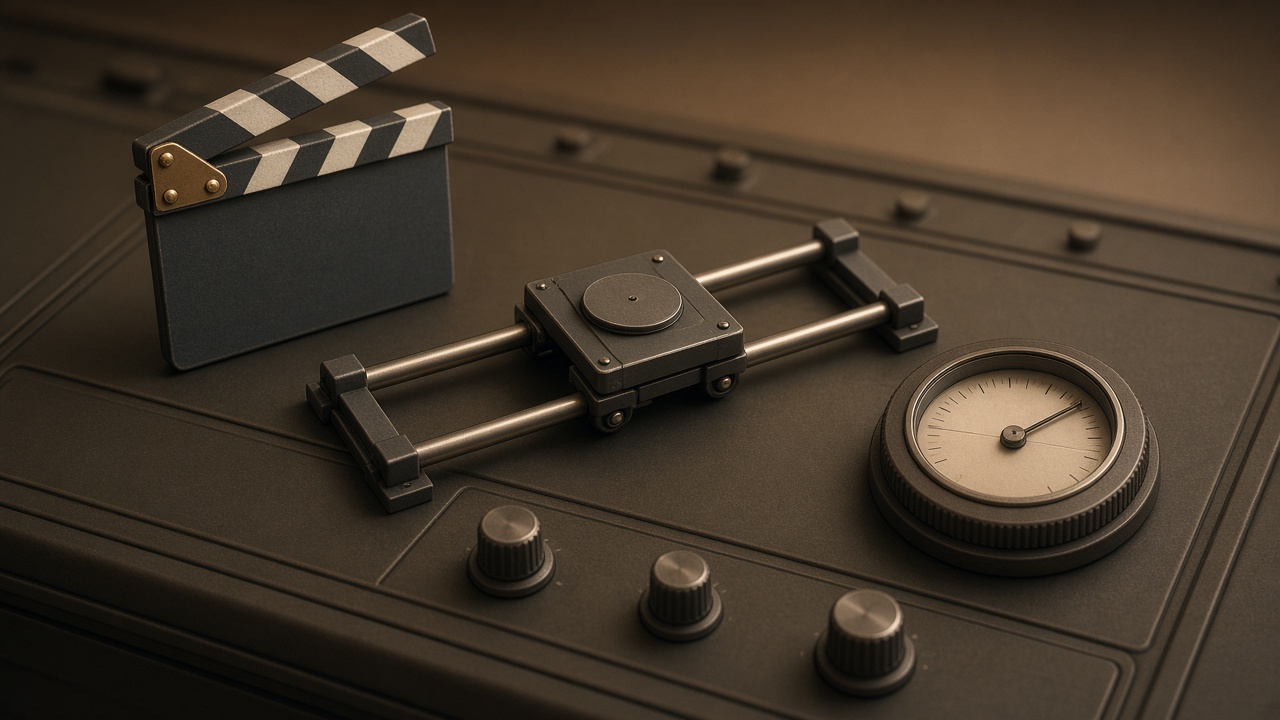
Most bad AI video clips fail for the same reason: the prompt only describes what's in the scene, not what happens to it. A model needs four separate instructions — subject and action, camera move, light and mood, and how long the shot runs — or it fills in the gaps itself, and that's where warped hands, sliding backgrounds and pointless motion come from.
Why your prompt needs four layers, not one
Text-to-video models don't "picture" a sentence the way you do. They read a prompt as a set of separate controls: one for who or what is in frame, one for how the camera behaves, one for lighting and atmosphere, and one for pacing and duration. If you only write a vivid description of the subject and skip the rest, the model has to invent the camera move and the lighting on its own — and it usually invents something generic or, worse, physically inconsistent.
This is true across current models. Treat every prompt as four short instructions stacked together, not one long description. Kling's own prompting guide makes the same point about atmosphere specifically: naming visible lighting details gives the shot emotional direction rather than leaving it to guesswork. Atmosphere and lighting give the prompt emotional direction, and naming visible details such as haze, rim light, long shadows, soft golden sunlight, cold blue night tones, or reflections on wet pavement matters when those details matter to the scene.
The four layers, in order
1. Subject and action
Say who or what is moving and what it's doing, in one clear action — not a list of five things happening at once. "A red fox trots across a snowy field, ears alert" works. "A red fox trots, then stops, sniffs the air, turns, and runs off while snow falls harder" is five shots crammed into one, and most models will blend them into a smear.
2. Camera move
Name one camera behavior: static, slow pan, slow tilt, dolly in, dolly out, tracking shot, handheld. A camera instruction gives the model somewhere specific to put its motion budget instead of spreading it across the whole frame unpredictably.
3. Light and mood
Describe the light source and quality, not just a mood word. "Moody" alone does little; "cold blue night light with a single warm window glow" gives the model something concrete to render. Kling's video model also supports Multi-Shot generation, letting creators build scenes with more shots and coverage inside one generation, which means lighting continuity across shots matters more than it used to — pick one lighting description and keep it if you're building a sequence.
4. Duration and pacing
State how long the action should take relative to the clip length. A 5-second clip can hold one clean action; asking for a chase, a reveal, and a landing in 5 seconds guarantees a rushed, glitchy result. Match the ambition of the prompt to the seconds you're paying for.
A weak prompt vs. a strong prompt
| Layer | Weak | Strong |
|---|---|---|
| Subject/action | "A woman in a city" | "A woman in a red coat walks briskly through a crosswalk, coat flaring in the wind" |
| Camera | (unstated) | "slow tracking shot, camera moving left to right at walking pace" |
| Light/mood | "cinematic" | "overcast daylight, soft diffused shadows, light rain on the pavement" |
| Duration | (unstated) | "8 seconds, one continuous walk, no cuts" |
Camera language that actually does something
Stick to terms models have clearly learned to interpret: pan (camera pivots left/right from a fixed point), tilt (pivots up/down), dolly in/out (camera physically moves toward or away from the subject), tracking shot (camera moves alongside a moving subject), and static/tripod (no camera movement at all). Vague terms like "cinematic camera work" do less than one specific move.
If you're building more than one shot in a sequence, keep the same style words across every prompt. Applying the same style keywords such as "cinematic," "warm lighting," or "steady cam" throughout all prompts, and saving effective prompts as templates while only altering the shot type or direction of movement, is what keeps a multi-shot sequence from looking like it was made by five different people.
What breaks a clip
A handful of prompt habits reliably cause bad output:
- Stacking too many actions in one shot. One subject, one action, one camera move per generation. If you need a sequence, generate shots separately and stitch them, or use a model built for multi-shot coverage.
- Asking for physically impossible motion. Things that can't happen in the real world (objects passing through each other, limbs bending backward) confuse models that were trained mostly on real footage. Save impossible motion for editing afterward.
- Leaving the camera unstated. An unstated camera doesn't mean "no camera move" — it means the model picks one, often inconsistently mid-clip.
- Mismatched lighting between a reference photo and the prompt. If you're animating a photo, describe lighting that's consistent with the photo's actual light source, not a mood you want instead.
- Vague single-word mood adjectives. Pair descriptors instead of relying on one adjective — "cold and clinical" gives more to work with than "moody" alone.
Do it in Plurel
Plurel runs both models mentioned in this guide on one credit balance, so you can compare a Kling 3.0 result against a Seedance 2.5 result without juggling separate accounts.
For a short, cinematic single shot — Kling 3.0:
- Open Kling 3.0 directly, or click Video in the row under the composer and pick Kling 3.0 from the model list.
- Write your four-layer prompt: subject/action, camera move, light/mood, duration.
- Kling 3.0 makes 15-second 1080p clips and supports optional end-frame control, so you can also drop in a target final frame if you want the shot to land on a specific image.
- Approve the credit cost (from 55 credits) and generate.
For a longer scene with sound and strong reference control — Seedance 2.5:
- Open Seedance 2.5, or use the Video tool and select it from the model list.
- Seedance 2.5 supports clips up to 30 seconds. The model supports start and end frames, reference images, and optional native audio, with output at 480p, 720p, or 1080p and durations from 4 to 30 seconds. It's also built for reference-heavy work: it introduces 30-second native video generation and support for up to 50 multimodal references, so it's the better pick when a character, product or outfit needs to stay consistent across a longer clip.
- Write your prompt with the same four layers, and attach reference images if you have them (a character sheet, a product shot).
- Approve the cost (from 30 credits) and generate.
To fix a clip instead of starting over: use Video edit to change an existing clip by instruction, or Extend to continue a clip past its end — both keep the credit cost at the standard video price. You can also just follow up in the chat ("make the camera move slower," "same shot but at dusk") since the chat edits what was just made.
Ten example prompts to copy
A lighthouse keeper climbs a spiral staircase, lantern swinging in her hand. Slow tracking shot following her up. Warm amber lantern light against cold blue dusk outside the windows. 8 seconds, continuous climb.
Interior character motion with mixed lighting — run on Kling 3.0.
A barista steams milk behind a counter, steam curling upward. Static tripod shot, eye level. Soft morning light through a front window, warm and diffused. 5 seconds, no cuts.
Simple product/lifestyle motion — run on Kling 3.0.
A vintage car drives along a coastal road at sunset. Slow dolly out revealing the ocean behind it. Golden hour light, long soft shadows on the asphalt. 8 seconds.
Camera-led establishing shot — run on Kling 3.0.
A chef plates a dessert, tweezers placing a single berry. Slow dolly in on the plate. Cool studio light, single soft key light from above. 6 seconds, deliberate pacing.
Close-up product motion — run on Kling 3.0.
Reference: [attach character image]. She walks through a rain-soaked night market, neon signs reflecting off wet pavement. Tracking shot at walking pace. Cold blue and pink neon light, light rain visible in the air. 20 seconds, one continuous walk, with ambient street audio.
Longer reference-driven scene with audio — run on Seedance 2.5.
Reference: [attach product photo]. The product rotates slowly on a pedestal as studio lights shift from cool to warm. Static camera, slight orbit. Soft gradient lighting change over 15 seconds.
Product showcase with a lighting shift — run on Seedance 2.5.
Two people sit across a cafe table talking, one gestures while speaking. Static two-shot, eye level. Warm interior light, soft window fill from the side. 12 seconds, native dialogue audio.
Dialogue scene needing native sound — run on Seedance 2.5.
A drone-style shot rises over a foggy pine forest at dawn. Slow tilt up from the treeline to the horizon. Cool pale morning light, thin fog drifting through the trees. 8 seconds.
Landscape camera move — run on Kling 3.0.
Reference: [attach character sheet]. The same character walks into a second location, a busy train platform, coat still visible from the reference. Slow pan following her entrance. Overcast daylight, flat even light. 15 seconds.
Character consistency across a new scene — run on Seedance 2.5.
A potter's hands shape clay on a spinning wheel, close on the fingers. Static macro shot. Warm single-source light from one side, soft shadow on the far side of the clay. 6 seconds.
Tight macro motion — run on Kling 3.0.
Related guides
If you're building a full sequence rather than one clip, see How to Make a Short Film With AI, Start to Finish for how shots fit together. For a deeper look at Seedance 2.5's reference and audio features, read the Seedance 2.5 guide. Animating a single photo instead of writing from scratch is covered in How to Turn a Photo Into a Video With AI, and if the clip is for an ad, AI Video Ad Generator: TikTok/Reels Ad in 10 Minutes walks through the format end to end.
Write the four layers every time — subject and action, camera, light, duration — and most of what makes AI video look "off" stops happening.
Questions people ask
- What should an AI video prompt include?
- A strong prompt names the subject and its action, the camera move, the lighting or mood, and the shot length or pacing. Leave any of these out and the model guesses, which is where weird morphing and drifting motion come from.
- How long can an AI-generated video clip be?
- It depends on the model. In Plurel, Kling 3.0 makes clips up to 15 seconds, while Seedance 2.5 can run up to 30 seconds and supports start and end frames plus native audio.
- Why does my AI video clip morph or distort?
- Morphing usually happens when a prompt asks for motion that isn't physically coherent, when too many actions are stacked into one shot, or when the reference photo has odd lighting the model tries to reconcile with a new scene.
- Do camera terms like pan, dolly and tilt actually work in prompts?
- Yes. Naming a specific camera move (slow dolly in, tracking shot, static tripod) gives the model a clear job for the camera instead of leaving it to invent motion, which is one of the more reliable levers you have.
- Which AI video model should I use for a 20 to 30 second scene with sound?
- Seedance 2.5 is built for that: it generates native clips up to 30 seconds with optional audio and strong reference control for characters and products, starting at 30 credits in Plurel.
- Can I edit or extend an AI video clip after it's made?
- Yes. In Plurel you can ask the chat to change what was just generated, use the Extend tool to continue a clip past its end, or use Video edit to change an existing clip by instruction.
Sources
Keep going

How to Make a Short Film With AI, Start to Finish
Learn how to make a short film with AI: write the plan, design a hero character, animate 3–5 clips, and assemble the finished film in Plurel.
Updated Sep 19, 2026
Seedance 2.5: What It Is and How to Use It
Seedance 2.5 explained: ByteDance's 30-second, 4K video model, its reference system, Plurel credit prices, and how it compares to Kling 3.0.
Updated Sep 20, 2026
How to Turn a Photo Into a Video With AI
Learn how to turn a photo into a video with AI, step by step, using Seedance 2.5 or Kling 3.0 in Plurel's Animate tool — with prompts and credit costs.
Updated Sep 19, 2026
AI Video Ad Generator: TikTok/Reels Ad in 10 Minutes
Learn how to use an AI video ad generator to turn one product photo into a 9:16 TikTok or Reels ad in about ten minutes, with real costs.
Updated Sep 20, 2026