AI Haircut Try On: See a New Cut on Your Own Photo
Learn how AI haircut try on works and try a new hairstyle on your own photo in minutes, plus tips for a good source photo and picking a cut.
Updated Sep 25, 2026 6 min read
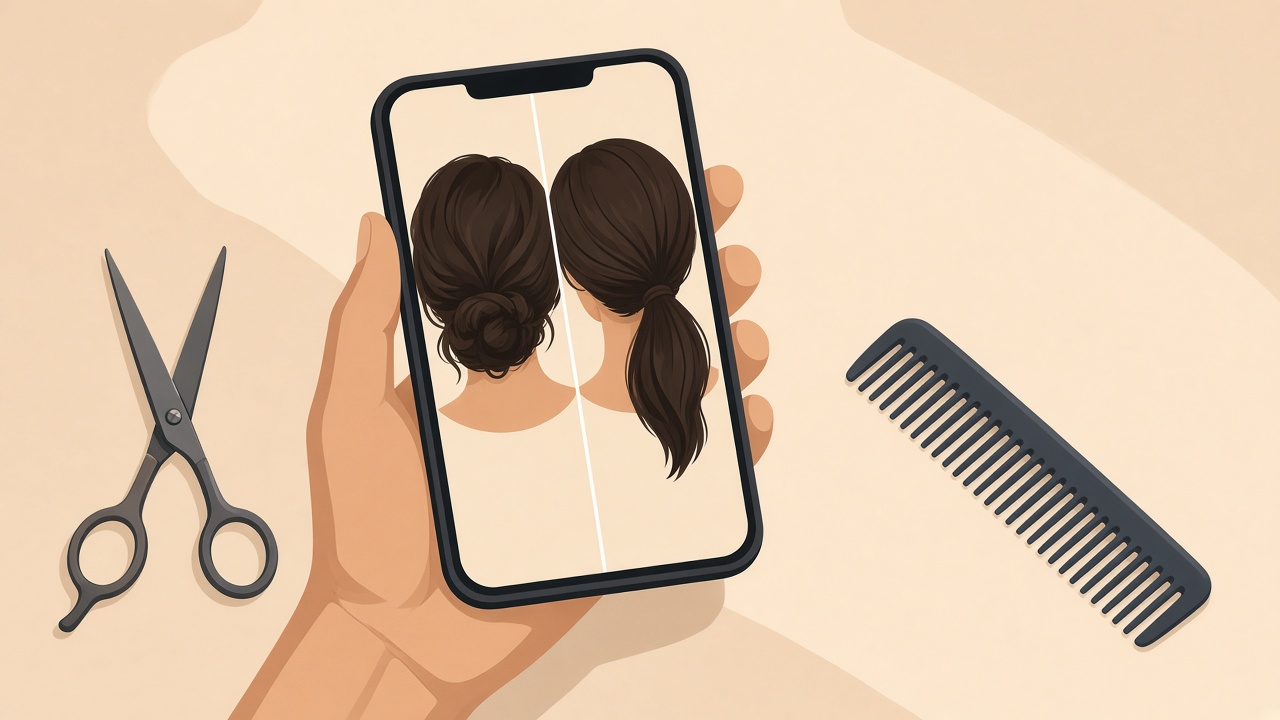
You can try a new haircut on your own photo without touching a pair of scissors. Upload a photo, describe or pick a style, and an AI tool redraws your hair while keeping your face, so you see the cut on you, not on a stock model. This guide covers what makes a source photo work, how to shortlist a style that actually fits your face, and exactly how to run it in Plurel's Haircut tool, credit by credit.
How AI haircut try-on actually works
An AI haircut tool is an image editor, not a filter. It reads your uploaded photo, locates your face and hairline, and repaints the hair region to match a new style or a written description, while leaving your face, skin, and background mostly untouched. That's why the same tool can turn a ponytail into a pixie cut, add bangs, or change length without redrawing your whole face from scratch.
The output is only as good as the photo you feed it. A blurry, angled, or heavily filtered selfie gives the model less to work with, so the new hair can sit oddly or your face can shift more than it should. Get the source photo right first, and everything after that is faster and more reliable.
What makes a good source photo
Before you open any tool, take or pick a photo that gives the AI a clean, honest view of your face and current hairline.
| Do | Avoid |
|---|---|
| Face the camera straight on, at eye level | Extreme angles, tilted head, looking up or down |
| Even, soft light (a window works well) | Hard side-light, deep shadows, heavy backlight |
| Hair pulled back or tucked so your hairline shows | Hair fully covering your forehead or ears |
| Plain background, one person in the frame | Busy backgrounds, sunglasses, hats, filters |
| A recent, unedited photo | Old photos or heavy face-smoothing filters |
Camera angle matters more here than for a normal selfie. Snapping from above gives a playful vibe, while straight on gives that confident look — and straight on is what you want, because it gives the model a clear, undistorted read on your hairline, ear position, and face width. A high angle or side glance might look flattering for a regular photo, but it hides exactly the information the AI needs.
Think about face shape before you pick a cut
You don't need a professional consultation, but knowing your rough face shape narrows the field before you spend credits on options that were never going to suit you. Most faces fall into one of six categories: oval, heart, square, round, long, or diamond, and the same haircut reads differently across them.
A couple of examples worth knowing before you type a prompt:
- Heart-shaped faces are wider at the forehead and temples and taper to a narrow, slightly pointed chin, so styles that add a little width near the jaw — soft layers, a chin-length bob — tend to balance that out.
- For a square face, softening the strong angles works well with wavy shags with wispy fringe, soft side-swept bangs, or long layers with a fringe.
Treat this as a starting point, not a rulebook. The whole point of trying a cut on your own photo is that you don't have to take anyone else's word for it — you can just look.
How to try a haircut in Plurel
- Go to plurel.tech and sign in with Google. Sign-up is free, no card required.
- Open the Haircut tool directly at plurel.tech/?model=haircut, or from the chat: under the composer, open the row of tools and pick the haircut option there.
- Upload your source photo — straight on, well lit, hairline visible, as covered above.
- Describe the style you want, or name it directly: "shoulder-length curtain bangs," "a low-fade buzz cut," "a blunt bob with a middle part." You can also point at a look you've seen: "the wolf cut, but shorter on top."
- Confirm and generate. Haircut runs 4 credits per look, and you'll see that cost before you commit.
- Compare the result against your original photo in the same window, then download it or save it to send to your stylist.
Comparing several looks side by side
Because Haircut sits inside a chat, you can keep refining the same photo instead of starting over each time. Follow up with plain instructions — "make it a shade darker," "same cut but with more layers," "try it without bangs" — and the chat edits the look you just made rather than generating a new face from nothing. Run two or three candidate styles this way and line the results up next to your original before you decide on anything.
If you want to see a fuller change — hair plus outfit, or hair plus makeup — the Styling tool and MakeUp tool work the same way for 4 credits each: one upload, one written instruction, one result to compare.
Be specific about what you ask for
Vague requests get vague results, and that's true across AI photo editing generally, not just haircuts. Getting specific with your wording tends to produce a photo that people still recognize as themselves, while a broad request like "give me a cool new look" leaves the model guessing at length, texture, and color all at once — and guessing is where results start to drift away from your actual face.
Instead of "change my hair," write it closer to a stylist's note: length ("above the shoulder"), texture ("loose waves" or "straight and sleek"), and one defining detail ("with curtain bangs" or "shaved on the sides"). If you want a color change in the same pass, say so directly — "a chin-length bob in copper red" — rather than running two separate edits and hoping they stack cleanly.
Troubleshooting
The result doesn't really look like you. This is almost always the source photo. Retake it straight on, in even light, with your hairline visible, and try again — most odd results trace back to an angled or shadowed original.
The cut looks right but the color is off, or the other way around. Split the request. Run the haircut first, confirm you like the shape, then send a follow-up message to adjust color or texture on that same result instead of changing both at once.
You want the exact look from a reference photo, not a written description. Some styles are easier to point at than to describe in words. Upload your photo alongside a reference image in the same message and ask for that haircut on your photo — the tool can work from a picture as well as text.
You're not sure which length to even try. Run two or three very different options first — short, medium, and one bold choice — before you refine anything further. At 4 credits a look, comparing three styles side by side still costs less than a single trim you might end up regretting.
If you're putting together a fuller before-and-after set — for a stylist consultation, or just to share with a friend before you decide — the same account keeps every result. Plan credits roll over from month to month, so there's no need to decide everything in one sitting.
For more on getting a clean, well-lit photo before you run any AI portrait edit, see the AI headshot guide, which covers the same photo basics from a different angle. And if your background is cluttered, the background remover guide shows how to clean that up first.
Try the cut before you commit to it: open the Haircut tool, upload a straight-on photo, and see it on your own face in seconds — not on someone else's.
Questions people ask
- Does an AI haircut try on show exactly how the cut will turn out in real life?
- It gives a close, realistic preview based on your photo, but actual results depend on your hair's texture, thickness, and how a stylist executes the cut. Use it to narrow down shape and length, not as a guarantee.
- Do I need a special photo, or will any selfie work?
- A straight-on, evenly lit photo with your hairline visible works far better than an angled or shadowed selfie. Poor source photos are the most common reason results look off.
- Is trying on a haircut with AI free?
- Signing up is free with no card required, and the Haircut tool costs 4 credits per generated look, paid from your credit balance (a plan includes credits every month).
- Can I try a haircut and a new hair color at the same time?
- Yes, describe both in one request, such as "a chin-length bob in copper red," rather than running two separate edits.
- Can men use AI haircut try on too?
- Yes, the same upload-and-describe process works for any hair length or style, including buzz cuts, fades, and beards.
- What if the AI result doesn't look like me?
- Retake your source photo straight on with even lighting and a visible hairline, then try again; most mismatches trace back to the original photo rather than the tool.
Sources
Keep going
How to Make an AI Influencer (and Keep Her Consistent)
Learn how to make an AI influencer with a consistent face across photos and video, then build one step by step in Plurel.
Updated Sep 19, 2026
25 AI Video Ideas for a Small Business (By Industry)
25 AI video ideas for business: copy-paste prompts for restaurants, salons, realtors and gyms, plus which Plurel tool and model to use for each.
Updated Oct 11, 2026
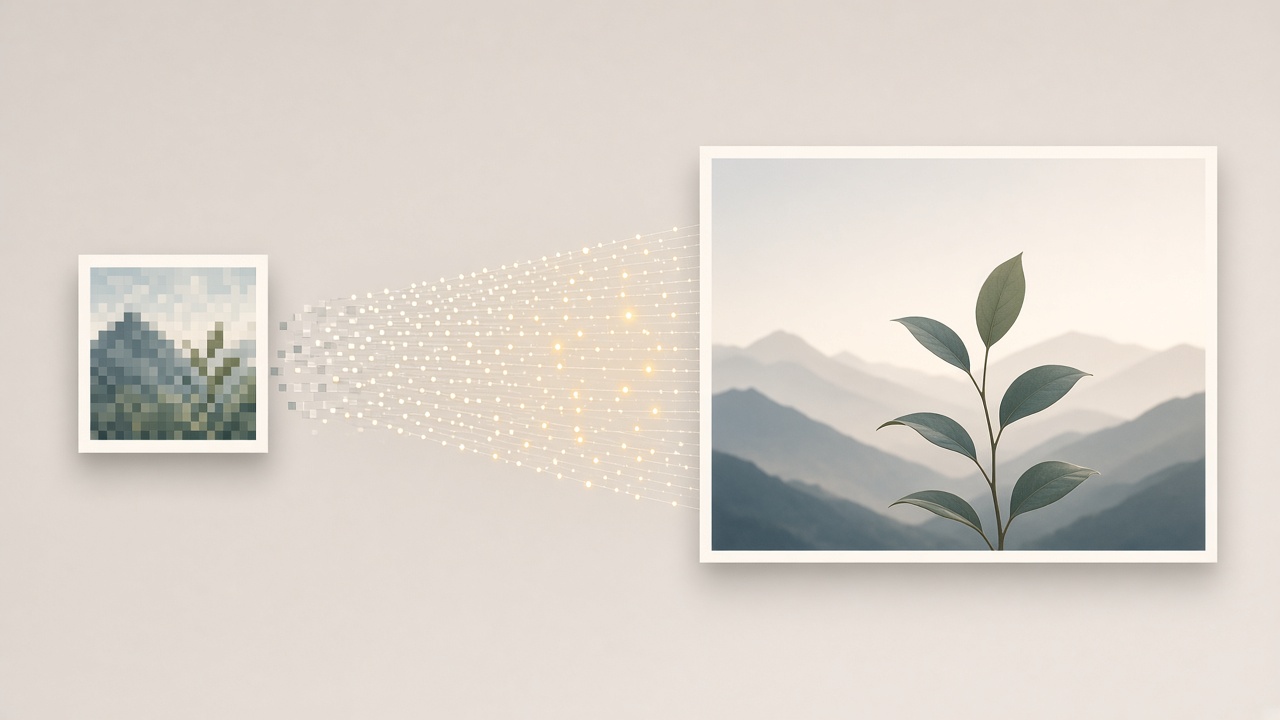
How to Upscale an Image to 4K With AI
Learn how an ai image upscaler 4k actually works, what it can fix, what it can't, and how to upscale a photo to 4K in Plurel for 1 credit.
Updated Sep 30, 2026

How to Get a Daily AI News Briefing You Can Listen To
Get a daily AI news briefing on local, national, or world topics, read by two voices. Build one in Plurel's News tool for 4 credits.
Updated Oct 13, 2026